
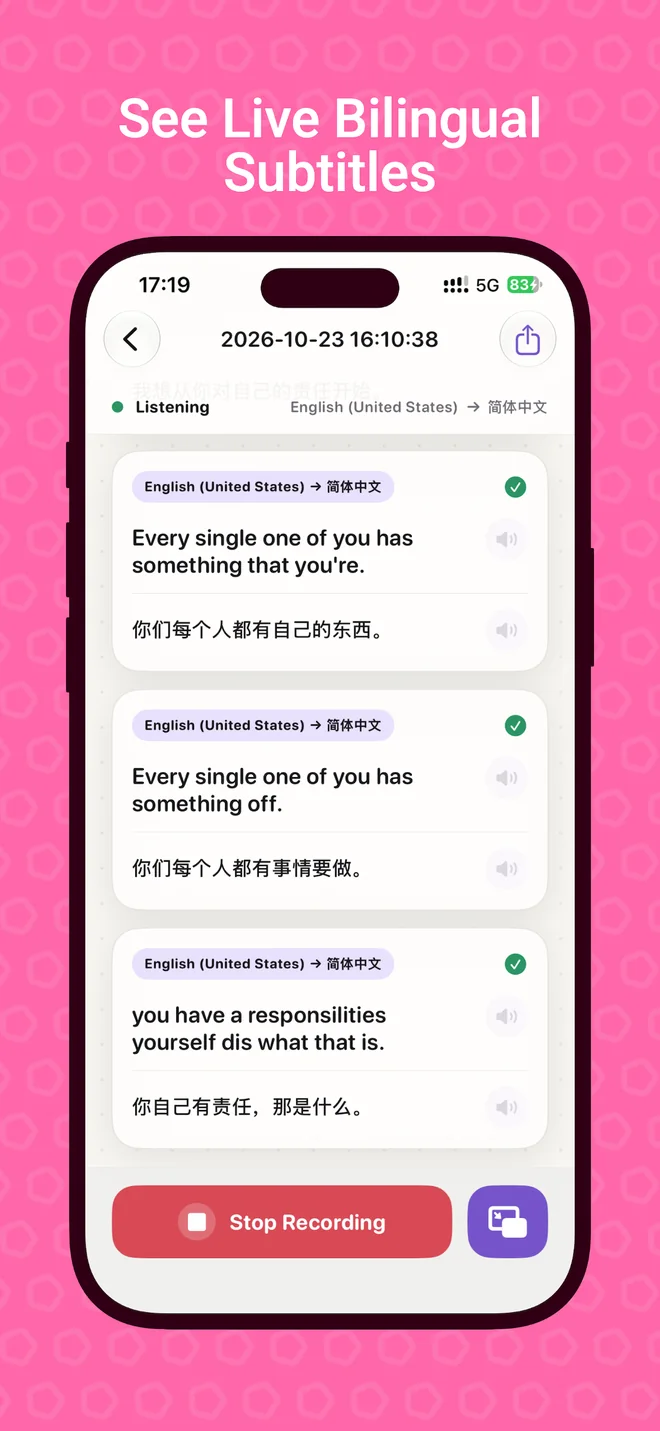
Listen to speech around you
Microphone translation is for the audio your iPhone can hear: a speaker nearby, a conversation across the table, or an explanation played on another device. Choose the source language and your reading language before you begin.
Seeing the original words alongside the translation gives you a reference as you listen. It can help when you want to follow the subject of a lecture or revisit an unfamiliar phrase. It does not replace a professional interpreter.
Start a microphone translation
- Create a translation task and select Microphone Translation.
- Choose the language being spoken and the language you want to read.
- Allow microphone access and any speech permission requested by iOS. Prepare the required language resources in the app.
- Start listening. Keep your iPhone close enough to hear the speaker clearly.
- Stop the session when you finish, then revisit the saved subtitles in translation history.
Read the way that helps you
Use the bilingual display to compare the original and translated text, or choose a translation-only or original-only view. Subtitle display settings let you adjust how much text you see. Saved tasks keep a timeline you can return to after the speech ends.
Keep a copy of the words
Export subtitles as SRT when you need timestamps or TXT when you need readable text. Choose original, translated, or bilingual content. Review the transcript before sharing: recognition mistakes can carry through to the translation and exported file.
Prepare your languages first
Speech recognition and translation depend on Apple system capabilities and available language resources. A language may support transcription without supporting your chosen translation pair. Downloads may require a network connection and device storage. Check the app’s language resource status before relying on a session.
What affects the results?
Background noise, distance, accents, overlapping speakers, and technical vocabulary can reduce accuracy. Text may change as recognition catches up with the audio. Supported languages, devices, and iOS versions vary; there is no guarantee of perfect or instantaneous translation.
Listening to audio in another app?
The microphone is a different input from the iOS system broadcast. To translate audio made available by another app, explore cross-app translation and floating subtitles, available with Pro. For permissions, language resources, and purchase questions, visit TransFloat support.