Across apps · Pro
Cross-app translation
Translate audio from supported apps using the iOS system broadcast. Read the original words and translation while you watch or listen.
Explore cross-app translation ↗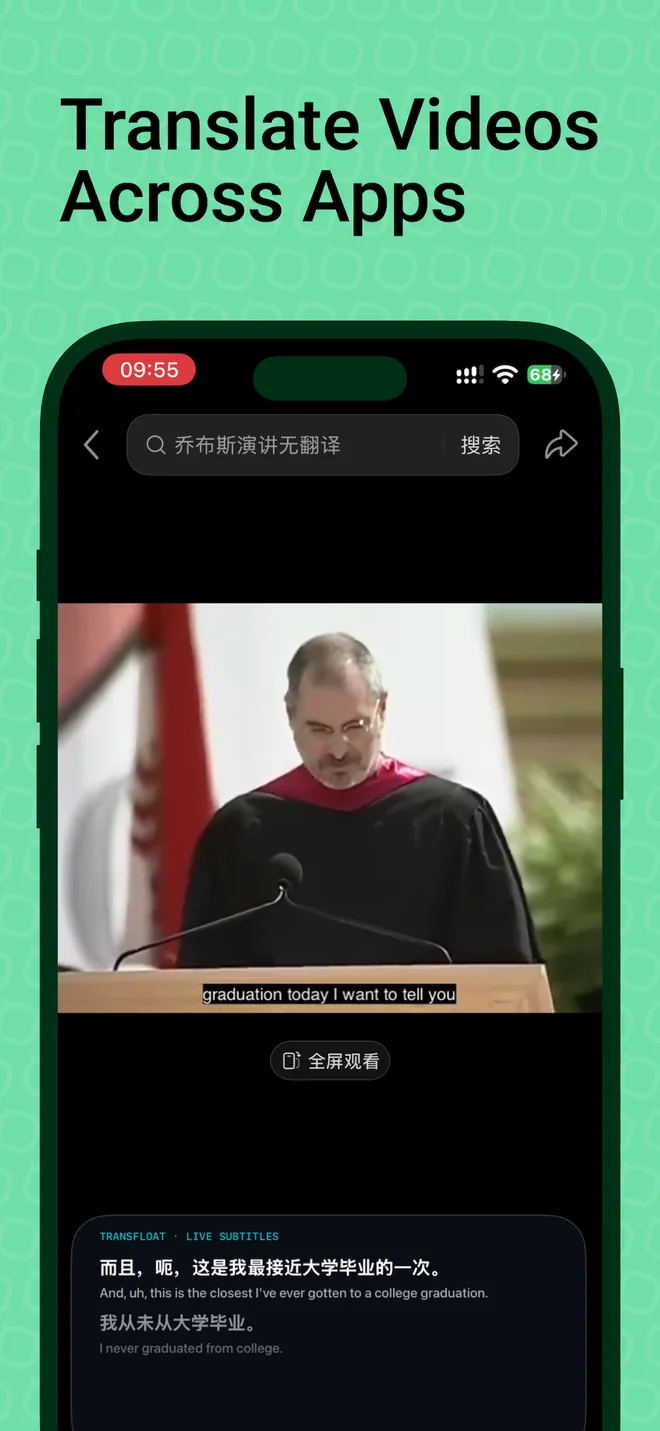
Translate live speech, videos, and supported app audio on your iPhone. Follow the original words and translation together.

Supported audio, languages, and devices only. Pro required for cross-app translation and floating subtitles.
TransFloat is an iPhone app that translates speech and audio into bilingual subtitles. It supports microphone translation, with cross-app audio translation and audio file import available through Pro. Pro also includes Picture in Picture subtitles and optional iCloud sync.
Developed by Qinfu Tech. Availability depends on the source app, device, iOS version, and language pair.
Translate audio from supported apps using the iOS system broadcast. Read the original words and translation while you watch or listen.
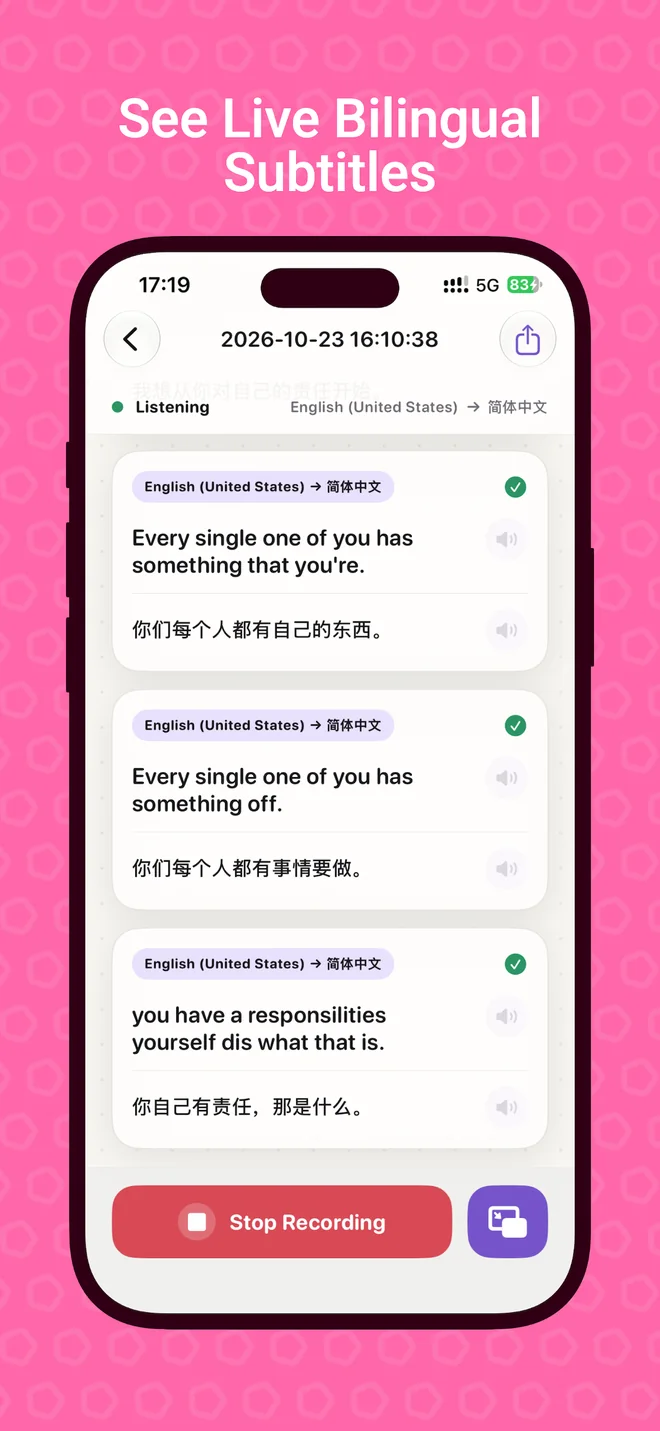
Explore cross-app translation ↗Turn speech around you into live bilingual subtitles. Use the microphone to follow a conversation, a talk, or a lecture in a supported language.
Explore live voice translation ↗Choose the source that fits what you’re listening to.
Pick a source and target language, allow microphone access, and start listening to speech around you.
Start the system broadcast, then play audio in a supported app. Compatibility depends on the app and content.
Import a local audio file and turn it into a timeline of original and translated subtitles.
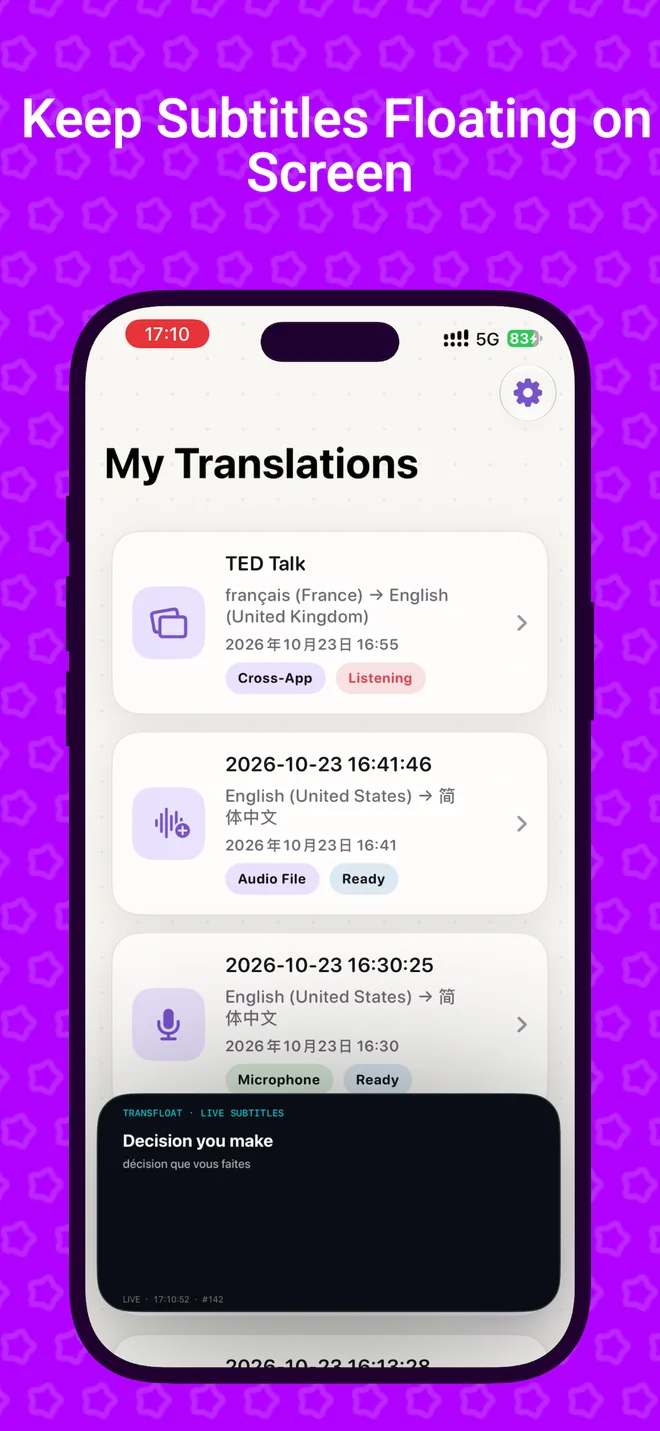
Let bilingual captions stay in view in a floating Picture in Picture window. Move between supported apps while keeping the original words and translation close.
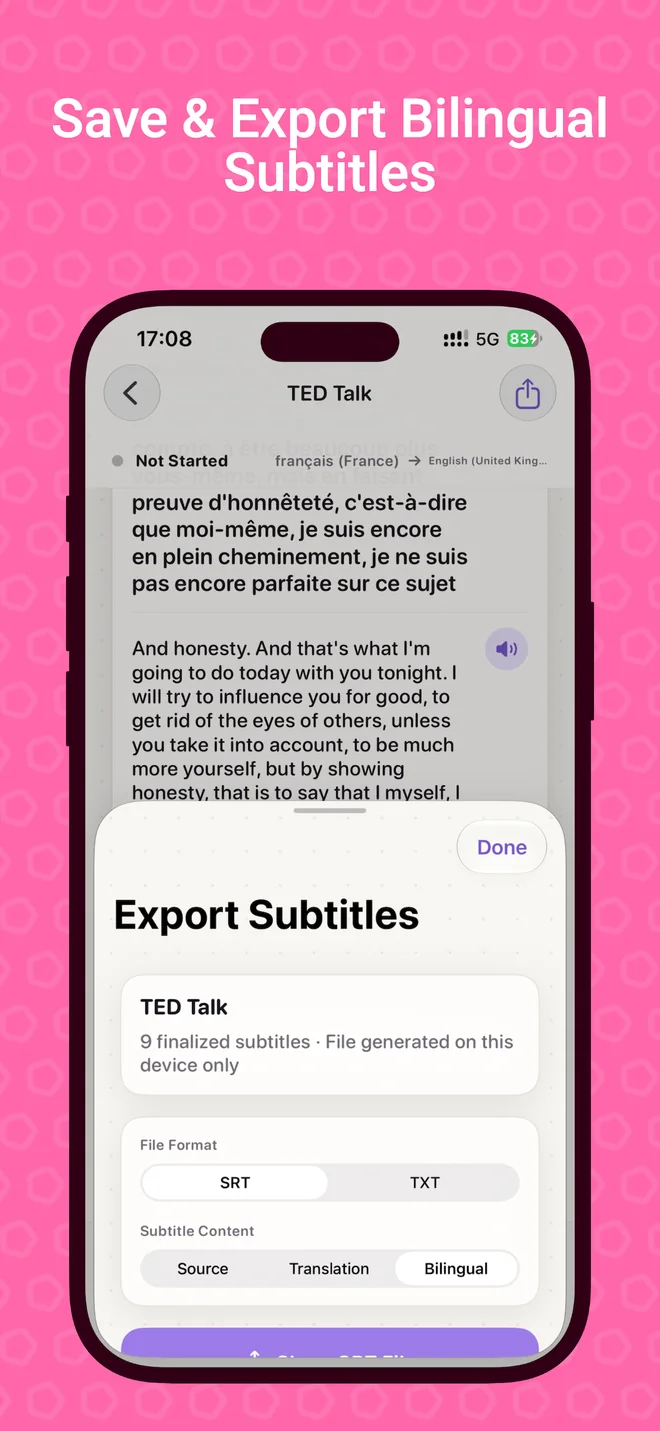
Explore floating subtitlesReturn to saved translation tasks in your local history. Review the subtitle timeline and export the words in the format you need.
Imported audio is stored locally for its task. Pro users can choose to enable iCloud sync for task and subtitle data.
Six real screens. From first listen to saved subtitles.
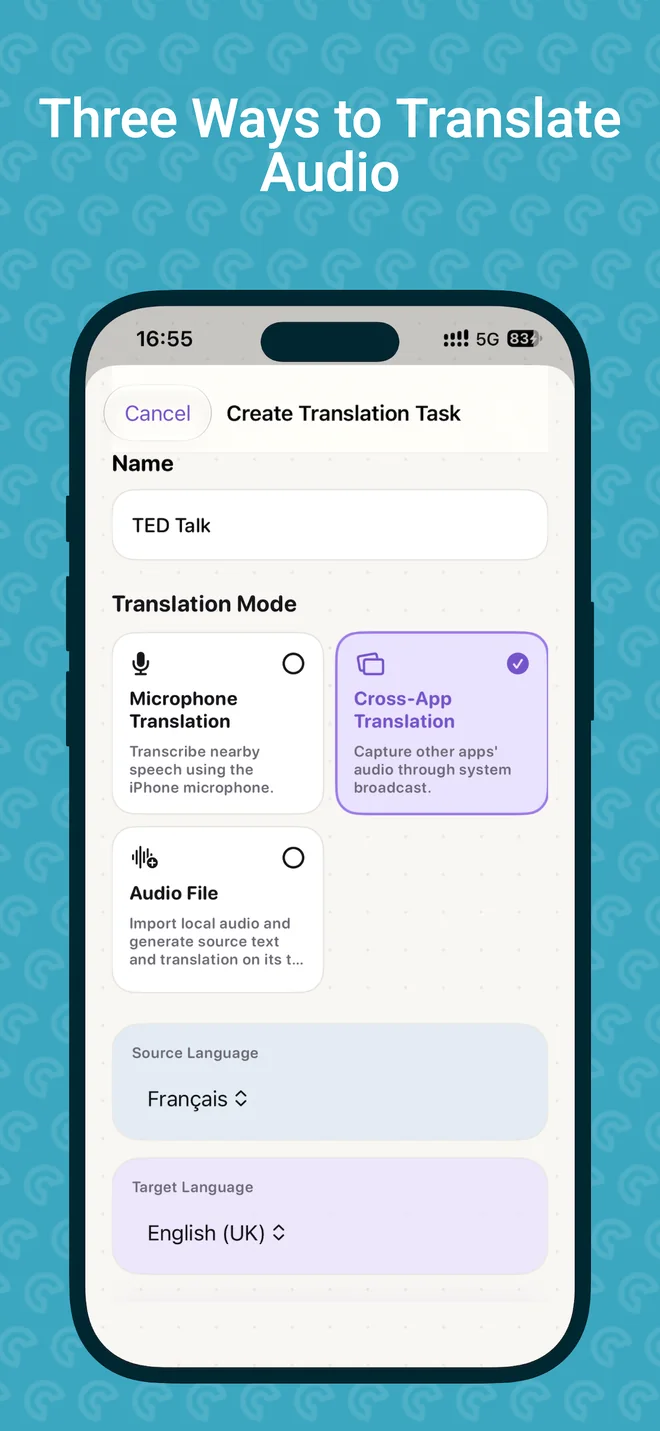
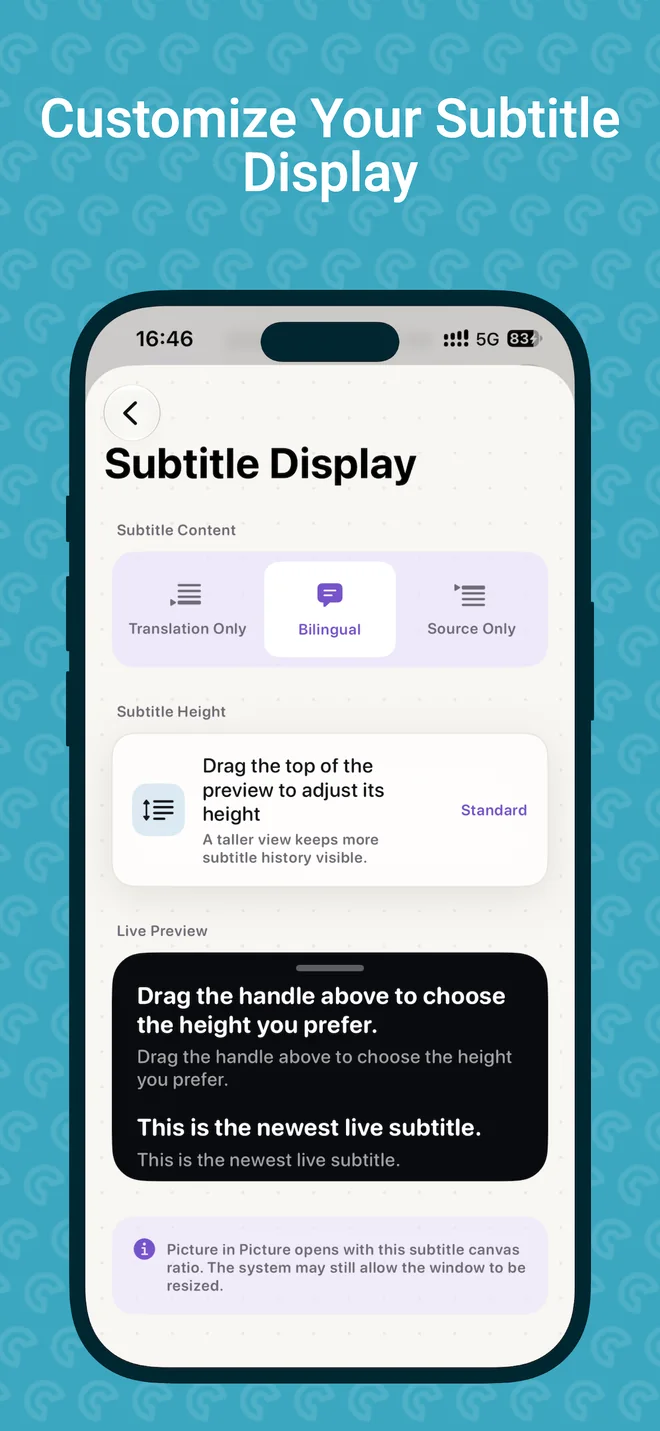
Bring translation across apps, into audio files, and along with you in a floating subtitle window.
See the app for current pricing, subscription terms, and usage limits.
iCloud sync stays off until you choose to enable it.
No. Cross-app translation relies on the iOS system broadcast and audio made available by the source app. Some apps or protected content do not provide usable audio.
Cross-app translation, audio file translation, Picture in Picture subtitles, and optional iCloud sync require Pro. Check the app for current prices, plans, and any usage limits.
Yes. Bilingual subtitles show the original words and translation together. You can also choose an original-only or translation-only layout.
Availability depends on your device, iOS version, language pair, and installed speech and translation resources. Check language availability in the app before starting.
Yes. Revisit saved tasks in your translation history and export SRT or TXT with original, translated, or bilingual text.
No. Noise, accents, overlapping speakers, and specialized words can affect results. Review important details against the original speech.

Live speech. Supported app audio. Both languages together.